Thanks everyone for attending the session today. I am sharing some quick notes here that may help you revise and try things on your own.
1. Why study WordPress?
- Powers 40% of all websites and hence extremely popular. Always in demand as a skill
- Has a large community of developers as well as non-developer contributors ( translation, marketing, support, videos, meetups and more). This means the software gets more frequent updates and great improvements because of involvement of large number of people around the world.
- It can help you build a website for yourself – blog or personal website. This hobby can also turn into a lucrative career opportunity, if you find it interesting. It can also help entrepreneurs market their business better by personally being involved in making their websites using WordPress.
Thanks to all of you for learning with an open mind and curiosity!
2. Install LocalWP as a local learning environment
WordPress is like an operating system for your website, pretty much like what Windows is for your laptop. (MacOS, or Linux in case you are not a Windows person). It brings with it some great features to build a robust website that is easy to create, update, maintain and even scale up with more features.
WordPress is typically installed on a hosting server that holds your website and makes it accessible to all people in the world. For learning purpose though, it is good to use a tool like LocalWP. This tool helps you create a test WordPress website on your own laptop, free of cost, without needing you to purchase any hosting plan.
If you are having difficulty installing LocalWP on your computer, you can spin up a test website on https://tastewp.com. This website lasts for two days and is helpful to practice some quick lessons.
3. Posts and Pages on WordPress
When you first create a new WordPress site, in its bare state it looks like this:
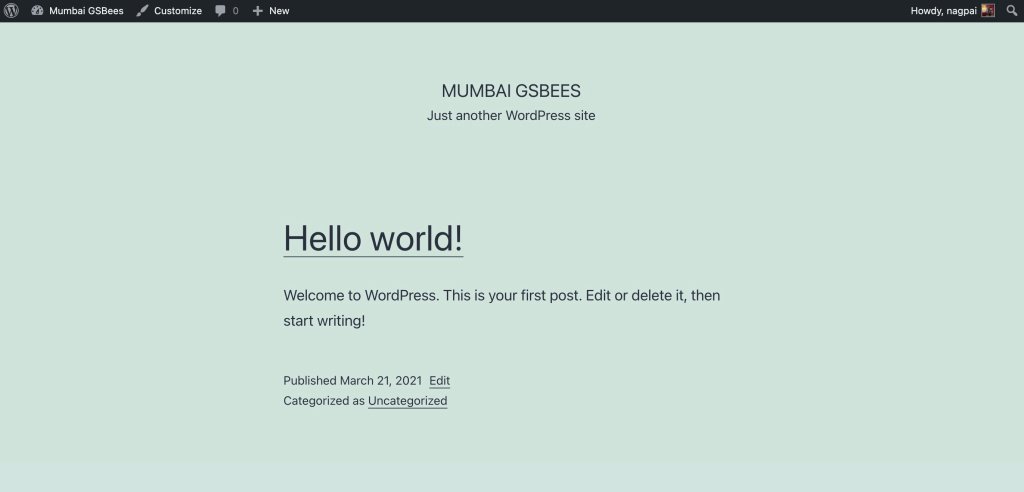
It has a header with title and tagline, followed by one demo blog post. Finally it has a footer. Earlier versions of WordPress had a different starting template that even had some additional items in the site footer (widgets)
By default WordPress creates a site that is more of a blog. With the front page showing a list of blog posts (initially only one demo ‘Hello World’ blog post)
It is important to understand in WordPress we have two major types of content
1. Posts – These are news items, or blog posts that have a date of publishing. If the site is designed as a blog, it will show the latest posts on top and older ones below (reverse chronological order). Like a newspaper or a magazine, posts can be grouped together as ‘categories’ and ‘tags’. We discussed this in detail.
2. Pages – Websites do not always have a Blog format as its front page. Many business sites, especially have what is called – Static page. The static front page has some images and good introductory content of the Business or the project the site represents.
Other than the home page itself, a website has some other Static Pages, such as Contact Us, Management Bio, About us – these pages if you notice do not actually have a publishing date, which bears prominence in posts. (or at least it is not as important for static pages).
3. The WordPress Block Editor
Also code-named Gutenberg, the default content editor in WordPress works like lego blocks. We saw briefly how we could add blocks within pages as well as posts, and how it changes the view of the sites.
4. The Customizer menu
Few things that we do not change on a day-to-day basis, like the site logo, name, tagline, location of front page, menu structure – these can be edited from the Theme customizer. It is available within
WP Admin >> Appearance >> Customizer
If we do not want the site to appear like a blog, we can create a static home page and specify that as the front page from Homepage settings in the customizer.
The customizer menu also has option to change site title, tagline and logo. Some features in this menu change depending on the theme you are using.
5. Themes and Plugins
WordPress allows you to change the look and feel of the site very easily by choosing from thousands of themes and applying one of them. Changing a theme does not delete any pages, posts or media files (images, audio, video uploaded earlier). A newly installed theme however requires a few setup steps, as specified by its author, to make it look nice. The documentation or setup steps for any theme should be found from
https://wordpress.org/themes
You should search for the theme by its name from there and follow along the links in it.
Think of Themes very similar to how themes work on your Android / iPhone.
Plugins
Plugins are like the apps on your phone. Think of it like apps for your website to add more functionality on it. These functions can vary from website security, adding contact forms or even adding a full blown shop section to your website (complete with stock, accounts and logistics management).
There are a few plugins that even turn your site to a CRM site, or one with advanced features like e-Learning or Professional appointment booking.
Video of the session
Unfortunately, we were unable to record the first half of the session due to the outage. I have the candid and unedited second half recording right below.
For some reason if the video does not play smoothly, you may download the file here:
 Learn with Nagesh